

Web Connect: Setup guide
On this page
This guide documents the configuration options of Web Connect in Adverity.
Introduction
What is Web Connect?
Web Connect is a universal connector in Adverity. With Web Connect, you can set up a connection to a data source API that does not have an available connector.
How do I configure a Web Connect datastream?
To set up a Web Connect datastream, you need to define how Adverity should send and process the API requests exchanged with the data source API. The configuration may include the following:
Defining how the API requests should be authorized. For more information, see Setting up an authorization to Web Connect.
Configuring the API requests that should be sent to collect data. For more information, see Request.
Specifying the pagination parameters used by the API when sending data. For more information, see Pagination Options.
Configuring how to process the API response and extract the data you need. For more information, see Response.
Configuring data collection with Web Connect
This section explains how to configure data collection with Web Connect.
Request
Configure the fields in this section to define the request sent to the API.
- URL
Enter the URL of the API, including the required parameters and values.
You can add the following parameters to the URL:
Start and end date parameters
You can set start and end date parameters to define the fetch date range in the URL or request body. You can set the date parameters in the following two ways:
{start}and{end}placeholdersWhen using the
{start}and{end}placeholders, you can change the fetch date range using the date range selector as in other connectors.For example, if your API uses the
date_fromparameter to define the start of the date range and thedate_toparameter to define the end of the date range, add the following expression to the URL to configure the fetch date range:date_from={start}&date_to={end}Your API may use a different date format than Adverity. To use a custom date format supported by your API, configure the Date format field below.
Static values
Alternatively, you can use static values to define the date range for which to collect data.
For example, to collect data from October 1, 2023 to October 5, 2023 with the
date_fromanddate_toAPI parameters, add the following expression to the URL:date_from="2023-10-01"&date_to="2023-10-05"
Authorization token
If you have an authorization token for the API, you can add it to the request URL.
If you are using an authorization to generate a token, you can add it to the request URL using the
{YOUR_TOKEN}placeholder.For example, if the URL uses the
tokenparameter, add the following expression to the URL:token={YOUR_TOKEN}
Value tables
To send multiple requests for a list of parameter values, use a value table in the request URL. This is typically used for lists of IDs, where you would need to collect data for multiple IDs. Adverity sends a separate request for each value in the value table.
For example, to use the value table with the name
valuetablename, add the following expression to the URL:{vt(valuetablename)}
In this expression,
vtsignifies that the placeholder in curly brackets is a value table.For more information on automatically populating value tables, see Automatically populate a value table.
Other static parameters
You can add any other static parameters to the URL required by the API.
For example, to collect data from the following endpoint
https://api.application.comincluding an authentication token generated by your authorization and using the date range selected through the datastream interface, configure the URL in the following way:
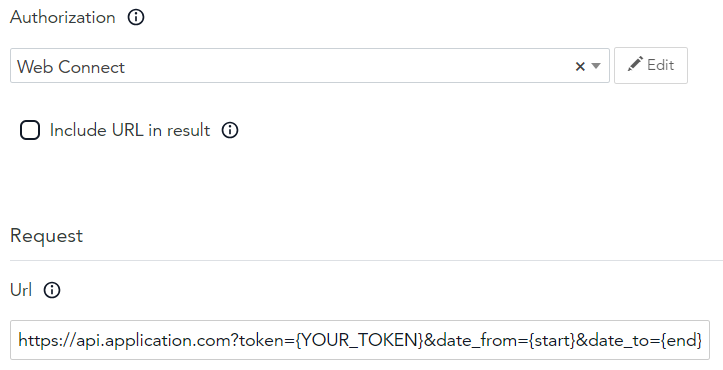
- Request method
Select either the GET or POST HTTP request method, and configure the request.
For the GET request method, you can configure the header in JSON format.
For the POST request method, you can select the request content type, configure the header in JSON format, and enter an HTTP request body in the selected content type.
Request content type
Select the content type for the POST request required by your API.
Request headers
Enter the parameters required in the header in JSON format.
For example, your request header may look like this:
{ "api-key":"abcdef", "Accept":"application/stream+json" }
Request body
In the request body, configure what data to collect if it is required by the API.
You can set start and end date parameters to define the fetch date range. The parameters can be set to static values or use the
{start}and{end}placeholders. For more information, see Start and end date parameters.You can also use value tables in the request body to dynamically populate values. Adverity sends a separate request for each value in the value table. Use the
{vt(valuetablename)}placeholder within the JSON body, wherevaluetablenameis the name of your value table. You can use a single value table or concatenate multiple value tables. For more information, see Value tables.For example, your request body may look like this:
{ "categories":[ "brandName", "eventCode" ], "metrics":[ "clickCount", "impressionCount" ], "currency":"USD", "dates":{ "eventDateStart":"{start}", "eventDateEnd":"{end}" }, "sort":{ "eventCode":"ASC" }, "summaryOnly":false }
- Date format
Configure the date format for the
{start}and{end}placeholders to match the API requirements.Most APIs use the ISO8601 format (
YYYY-MM-DD). If your API uses a different format, for exampleDD/MM/YYYYorMMDDYYYY, configure it in this field.To define the date format, use the following placeholders:
%m- a month as a two-digit number, from 01 to 12. This matches themmformat.%d- a day as a two-digit number, from 01 to 31. This matches theddformat.%Y- a year as a four-digit number. This matches theyyyyformat.
For example, to set the date format to
DD/MM/YYYY, enter%d/%m/%Yinto the Date format field.For more information on available formats, see Unix reference.
- Navigation URLs
Include a list of URLs that are called before fetching the data. Use this option if you need to perform a request before you fetch data.
Enter the list as “request method - URL” pairs.
Pagination Options
For details, see Configuring pagination in Web Connect.
Response
Configure the fields in this section to define how Adverity processes the response from the API.
- Zip match
If you are fetching data in a compressed file format that contains multiple CSV files, for example, zip, you can define a regular expression to configure which file within the compressed file is fetched. As a result, the fetch retrieves just a file you define uncompressed.
For example, your compressed file contains two folders: September and October. If you want to extract all CSV files from the October folder, enter the following expression in this field:
October/*.csv
- Archive Password
If your data is in an encrypted zip file, provide the password in the Archive Password field to decrypt it automatically.
- Parser
Select the format in which the API sends the response.
Adverity currently supports the following parsers:
CSV (with comma delimiter)
CSV (with semicolon delimiter)
TSV (tabs)
Excel
JSON (strict)
HTML
XML
JSON
Difference between JSON and JSON (strict): A valid response (HTML code 200) can be empty, or the response does not contain data for the specified JSONPath. In such cases, Adverity raises an error. In some cases, you may not want to see these errors. Depending on which JSON parser you select, these errors are either raised or not in the following way:
JSON ignores these errors.
JSON (strict) raises an error when a specified JSONPath does not contain data or a valid response (code 200) is empty.
- Encoding
Select the encoding in which the API sends the response.
Adverity supports the following encoding types:
Auto-detect
UTF-8
UTF-8 (with BOM)
UTF-16
UTF-16 (Little Endian)
ISO-8859-1
ISO-8859-9
ISO-8859-15
Shift-JIS
Code page 437
Windows-1250
Windows-1251
Windows-1252
UTF-8 (with embedded garbage)
ISO-8859-1 (with embedded garbage)
- Data key
Select the part of the response containing data that you want to collect.
For JSON responses, enter a JSONPath. For more information, see Using JSONPath.
For XML and HTML parsers, enter an XPath for rows. For more information, see Using XPath and the W3 XPath documentation.
For XLSX parsers, enter the name of the sheet that you are importing.
To select only specific columns from this data, use the Column mapping field described below.
- Column mapping
Select only specific columns from the part of the response defined by the Data key.
To define which columns of a JSON or XML response are extracted with column mapping, use one of the following:
For JSON responses, enter a JSONPath. For more information, see Using JSONPath.
For XML responses, enter the following pairs
"column-name": "XPath", where column-name will be the column name in the data extract and XPath provides the path to the data that should be fetched for this column.For more information, see Using XPath and the W3 XPath documentation.
For example, this field may be configured like this:
{ "Product":"product", "CPT":"audiences/audience/cpt", "Cash Donation Volume":"sales/entry[key='Cash Donation']/value" }
This will create a data extract with three columns: Product, CPT, and Cash Donation Volume containing the specified data.
For advanced XPath examples including namespace handling and complex XML structures, see Using XPath.
- Extract first array from response
Enable this option to automatically extract the first array from the JSON response, if the response is a JSON object with a single root array. If disabled, the full JSON object is returned. This option is enabled by default.
Other
- Sleep
Enter how long you want to delay the fetch start, in seconds.
Advanced data extraction
For details, see Extracting data with JSONPath and XPath in Web Connect.
Troubleshooting
I see a JSONPath error message when fetching data from Web Connect
The No rows match the given jsonpath error message appears because the syntax of a JSON path in your datastream settings is incorrect.
To resolve this issue, check the JSON paths used in your datastream settings and correct any syntax errors.
I see an encoding error message when fetching data from Web Connect
The Adverity cannot determine the character encoding error message appears when Adverity is not sure whether the automatically detected encoding is correct.
To resolve this issue, we recommend checking the automatically detected encoding, and changing the setting if it is incorrect. If it is correct, you do not need to take any further action.
I see a codec error message when fetching data from Web Connect
The 'ascii'/'utf-8'/etc. codec can't decode byte 0xYY in position xxxxxx error message can appear for the following reasons:
-
The encoding for your Web Connect datastream is defined incorrectly.
-
The datastream is set to parse an incorrect file type.
-
The source file contains characters with multiple encoding types.
-
The source file contains invalid or corrupted characters.
To resolve this issue, depending on the cause, you need to correct your datastream settings, ensure that the source file only contains characters with one encoding type, and remove any invalid or corrupted characters in the source file.
I see a request method error message when fetching data from Web Connect
The Request method 'POST'/'GET' is not supported error message appears when you are trying to use an unsupported request method.
To resolve this issue, change the request method:
-
If you are trying to use the
POSTrequest method, change it toGET. -
If you are trying to use the
GETrequest method, change it toPOST.
My Web Connect datastream was automatically paused
Adverity automatically pauses Web Connect datastreams that have failed identically for a consecutive number of days or attempts. This prevents continuous retries of fetches that are structurally failing (for example, due to HTTP 410 Gone or 401 Unauthorized errors) and conserves resources.
When a datastream is automatically paused, a notification is sent to the workspace owner. To resume collecting data, review the datastream configuration and resolve the underlying issue causing the failures. Then, you can manually unpause the datastream.